Warning
The CRC will officially retire AFS in May, 2027.
Visual Studio Code
“Visual Studio Code is a lightweight but powerful source code editor which runs on your desktop and is available for Windows, macOS and Linux. It comes with built-in support for JavaScript, TypeScript and Node.js and has a rich ecosystem of extensions for other languages and runtimes (such as C++, C#, Java, Python, PHP, Go, .NET).” – from https://code.visualstudio.com/docs
Downloading and installing on your own machine
Choose an edition to download. We suggest downloading the compressed version.
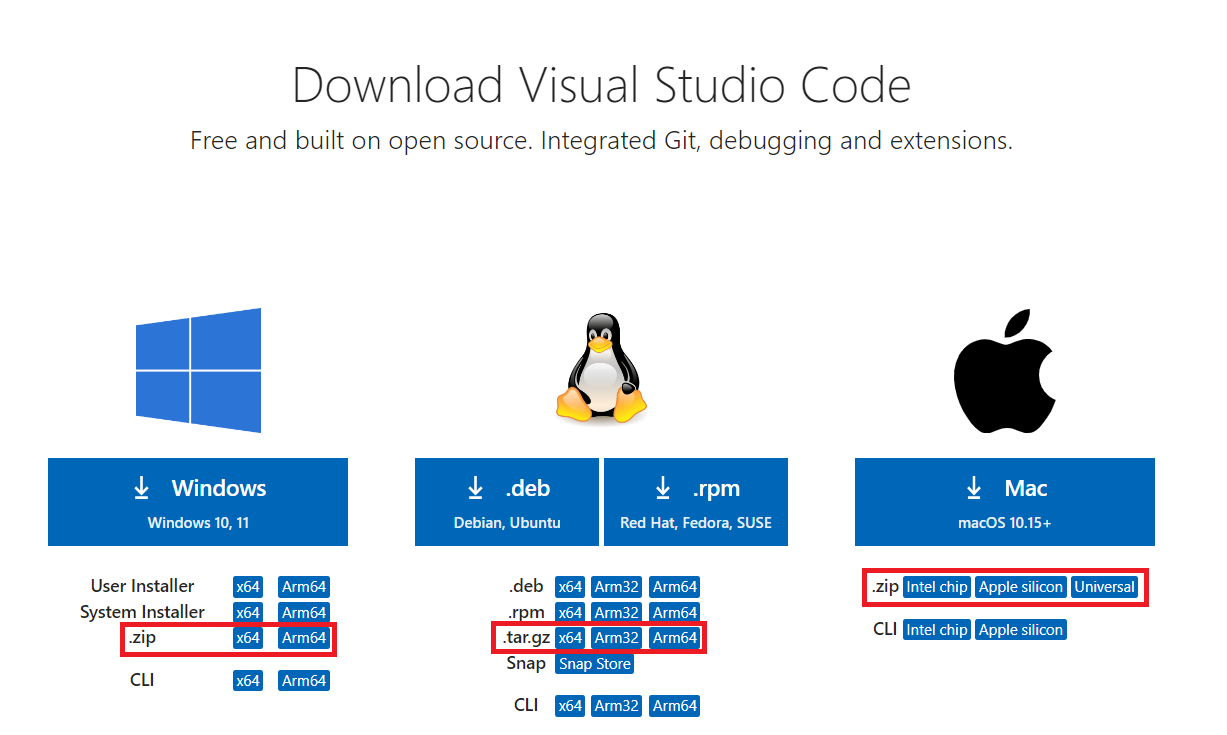
Download and save the file on your own machine.
Extract the compressed file and run the executable, the Code.exe on Windows or Visual Studio Code on Mac.
Using Remote Tunneling with VSCode
Visual Studio Code is an IDE (Integrated Development Environment) that is commonly used for software development and debugging. By using the Remote Tunnels extension in VSCode, you can connect to one of the CRC machines, and you can debug/modify your source code on the server directly through the Visual Studio Code application on your own laptop or PC. You can find the instructions below on how to set up and use the extension.
Installing the Remote Tunnels extension for VSCode
Start Visual Studio Code on your own laptop or PC.
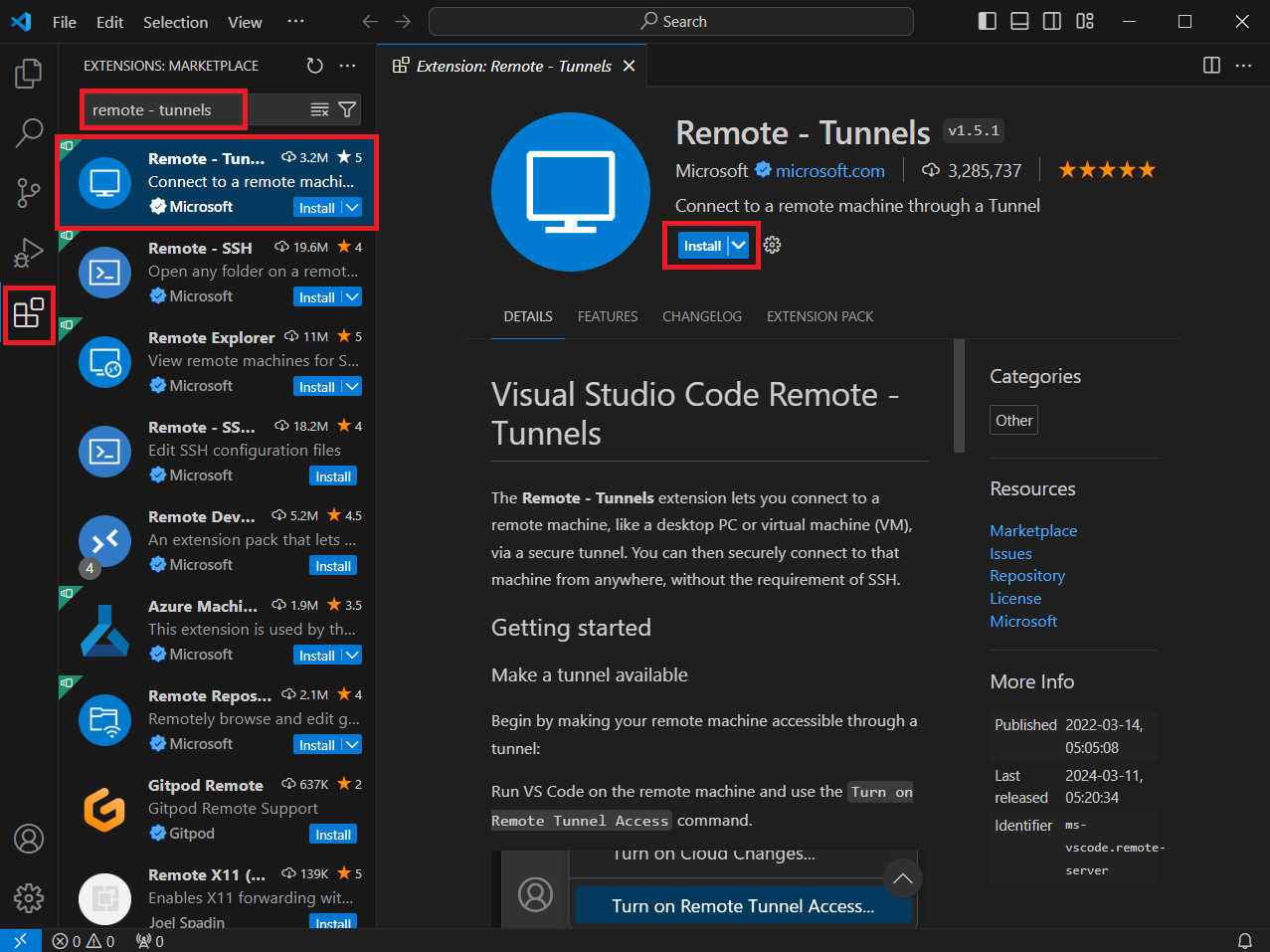
Open the Extensions tab, search for Remote - Tunnels, and install the latest version.
Download and install the VSCode CLI (Command Line Interface) on the CRC system
Connect to a CRC front end machine
Download the latest version of the VSCode CLI:
curl -Lk 'https://code.visualstudio.com/sha/download?build=stable&os=cli-alpine-x64' --output vscode_cli.tar.gz
Extract the .tar.gz file on the server:
tar -xf vscode_cli.tar.gz
The code executable should be available in your current directory.
Creating a remote tunnel on a compute node
In this video you can find the instructions on how to create a remote tunnel on a compute node with the following command:
./code tunnel --name=tunnel_example
Connecting to the tunnel from your local machine
In this video you can find the instructions on how to connect to the remote tunnel from VSCode that is installed on your local machine.
Warning
When opening a folder in Visual Studio Code, please avoid opening directories with many files and/or subdirectories, e.g. your home directory, or the /users directory.
Closing and unregistering the tunnel
In the next video you can find the instructions on how to close and unregister a tunnel.
Further Information
See the official site: VSCode