Warning
The CRC will officially retire AFS in May, 2027.
How to use POSIX permissions
POSIX permissions use the following 2 core concepts:
User Classes
Permission Types
User Classes
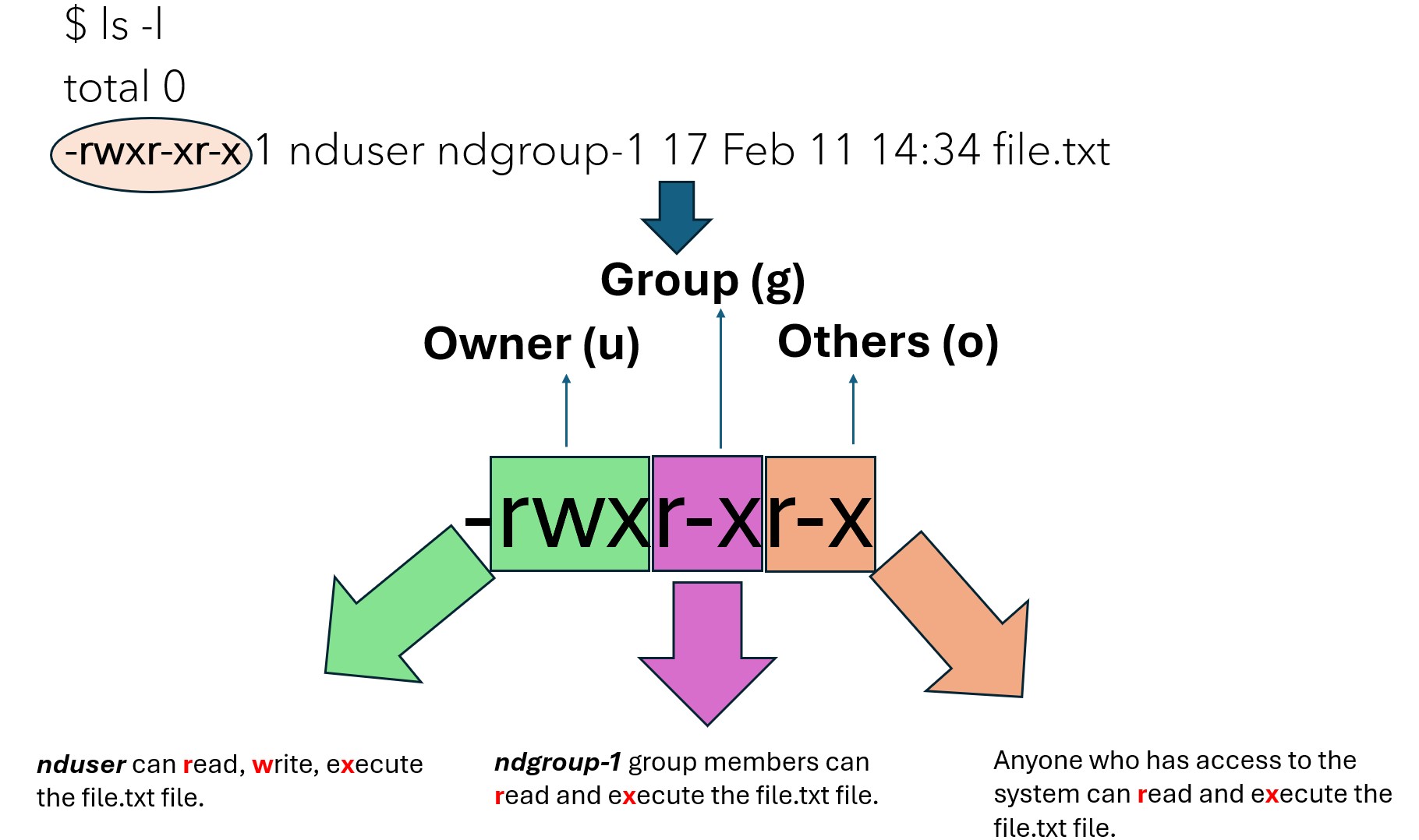
The permissions are defined for three user classes for each file and directory. The three user classes are:
Owner (u): The user who owns the file, typically the creator of the file/directory.
Owner Group (g): Users that are members of a group associated with the file/directory.
Others (o): Anyone else who has access to the system.
Primary Permission Types
Three primary permissions can be granted or denied for each user class. These primary permissions are the following:
Read (r): This permission grants permission to view the file’s content, and list the content of a directory.
Write (w): This permission grants permission to modify/remove the file’s content, and add, remove, rename files within the directory.
Execute (x): This permission grants permission to run the file as a program.
Changing the permissions
Warning
Please note that only the owner of the file/directory and system administrators can change the owner, the owner group and the permissions using the chown, chgrp and chmod commands, respectively.
Changing the owner of a file or directory
The owner of a file or directory can be changed using the chown command:
# Changing the owner of the script.sh file to nduser:
chown nduser script.sh

# Changing the owner of the src directory to nduser:
chown nduser src

# Changing the owner of the src directory including the subdirectories and files within the directory to nduser
chown -R nduser src
Changing the owner group of a file or directory
The owner group of a file or directory can be changed using the chgrp command:
# Changing the owner group of the script.sh file to ndgroup-1:
chgrp ndgroup-1 script.sh

# Changing the owner group of the src directory to ndgroup-1:
chgrp ndgroup-1 src

# Changing the owner group of the src directory including the subdirectories and files within the directory to ndgroup-1:
chgrp -R ndgroup-1 src
Changing the permissions of a file or directory
The permissions of a file or directory can be changed using the chmod command:
# Granting the owner of the script.sh file execute permissions
chmod u+x script.sh

# Granting the owner group of the script.sh file read and write permissions
chmod g+rw script.sh

# Granting everyone read and execute permissions to the script.sh file
chmod o+rx script.sh

# Granting the owner, the owner group and everyone read and execute permissions to the script.sh file
chmod a+rx script.sh

# Granting the owner group of the src directory write permissions
chmod g+w src

# Granting the owner group of the src directory write permissions including the files and the subdirectories within the directory
chmod -R g+w src

# Revoke the Others' write permission to the script.sh file
chmod o-w script.sh
Special POSIX permissions
Set User ID (SUID) permission
When the SUID is set on an executable file, the file runs with the file owner’s permissions, not the user who executes the file. This is typically used for system programs.
# Setting the User ID for the script.sh executable file

chmod u+s script.sh
Set Group ID (SGID) permission
The SGID permission works differently when applied on directories and files.
When the SGID is set on an executable file, the file runs with the file owner group’s permissions, not the user’s default owner group who executes the file.
When the SGID is set on a directory, any new files or subdirectories created within that directory will automatically inherit the directory’s group ownership. This is typically used for shared directories when multiple users collaborate on files.
# Setting the Group ID for the script.sh file
chmod g+s script.sh

# Setting the Group ID for the group directory
chmod g+s group/

# Setting the Group ID for the group directory including files and subdirectories within the directory
chmod -R g+s group/
Warning
Please note that if the directory is not empty when setting the SGID of the directory, the -R option could be used to update the subdirectories’ permissions, too.
Warning
Changing the owner group of a directory after setting the SGID will unset the SGID of the directory.
Set the sticky bit permission
Setting the t sticky bit on a directory prevents users from renaming and deleting files or directories within the directory, unless the user is the owner of the file or directory or a system administrator.
# Setting the sticky bit on the src directory
chmod +t src